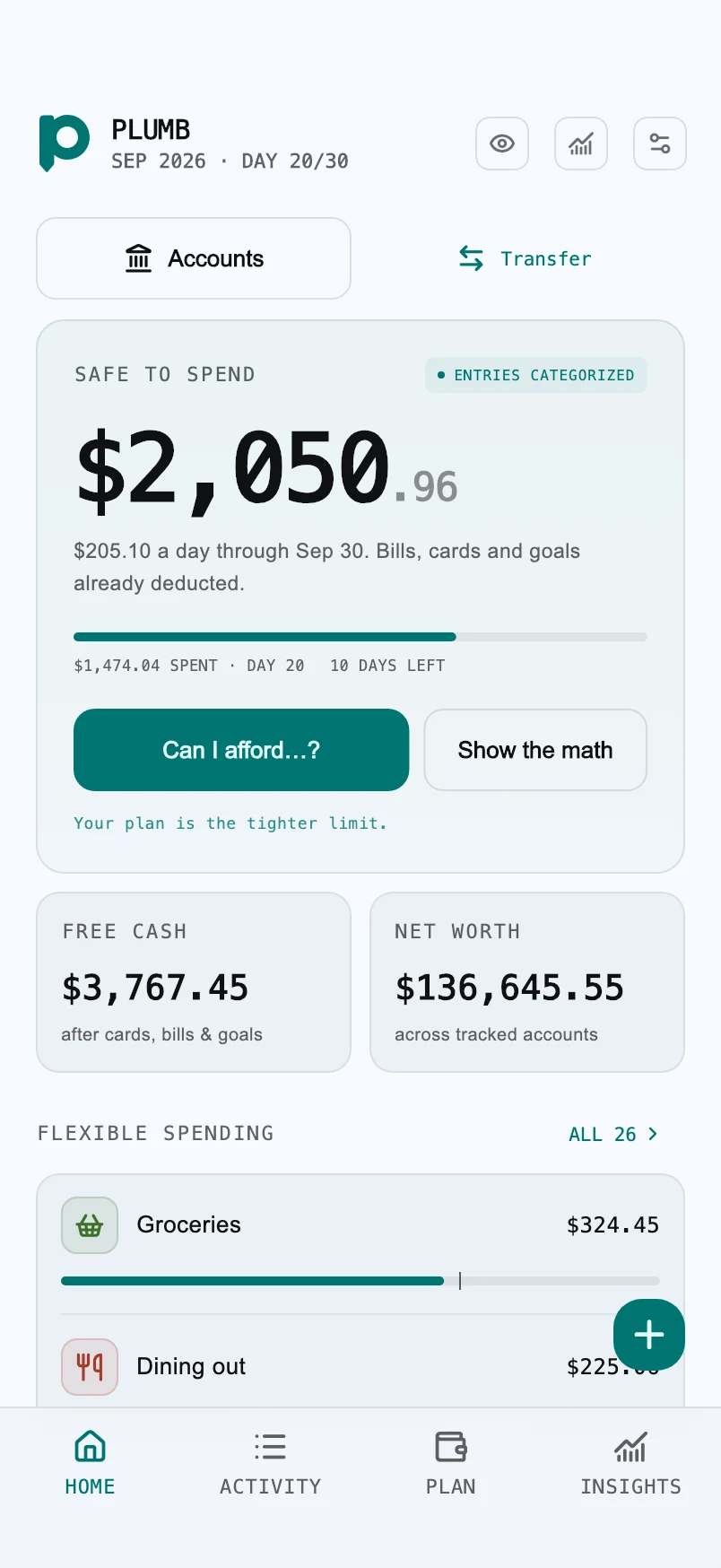


How a manual wallet works.
For a cash purchase, choose your cash account, enter the amount and select a category. For a card purchase, choose the card account instead. Your recorded balances and spending plan update together.
At a regular check-in, compare Plumb with your actual balances. Add missing transactions or use a balance adjustment when needed. Plumb keeps that adjustment in your history.
Check a manual budget against your actual balances with a step-by-step example.
Useful when bank coverage is limited.
Manual entry lets you track cash, bank accounts and cards without depending on whether a bank offers an integration. You can use the core wallet offline. Purchases, ads and other online services still require connectivity.
The tradeoff is responsibility: transactions do not arrive automatically. A missed expense can overstate the money you have left. Plumb’s estimates are only as complete as your records.
Your records stay on your device.
Financial records are stored locally. App Lock protects access, and balance masking helps when checking your wallet in public. Free includes ads; financial records are not sent to advertisers. The app also uses limited analytics and diagnostics as described in the privacy policy.
Create a password-encrypted backup and keep a copy somewhere you can access if your phone is lost. You choose where to save the file. Plumb cannot recover a forgotten backup password or an unbacked-up wallet.
See the budget behind the balance.
A balance alone does not tell you what remains after commitments. Explore the spending estimate and calculator or see the expense-tracking workflow.
How do I move my wallet to another phone?
Create and save an encrypted wallet backup on the old phone, then use Restore wallet on the other phone with the backup file and its password. Back up any wallet already on the destination phone first: a successful restore replaces its financial records. Follow the backup and restore steps.